
What is removable storage, and why does it matter in today’s digital world? Removable storage refers to portable devices that allow you to store, transfer, and access data seamlessly across different computers and systems. Simply put, it provides a flexible way to carry important files, documents, photos, or software without relying on internet connectivity or cloud services.
From USB flash drives and external hard drives to SD cards and even CDs or DVDs, these plug-and-play devices make data transfer quick, convenient, and accessible. Removable storage plays a vital role in personal and professional settings, helping individuals and businesses manage backups, share large files, and ensure critical information is always within reach.
By understanding these storage media, users can choose the right device for their needs while maximizing portability, efficiency, and data security. This guide will explore types, uses, benefits, security risks, troubleshooting, and best practices to help you make the most of removable storage devices.
In This Article
ToggleWhat is Removable Storage?
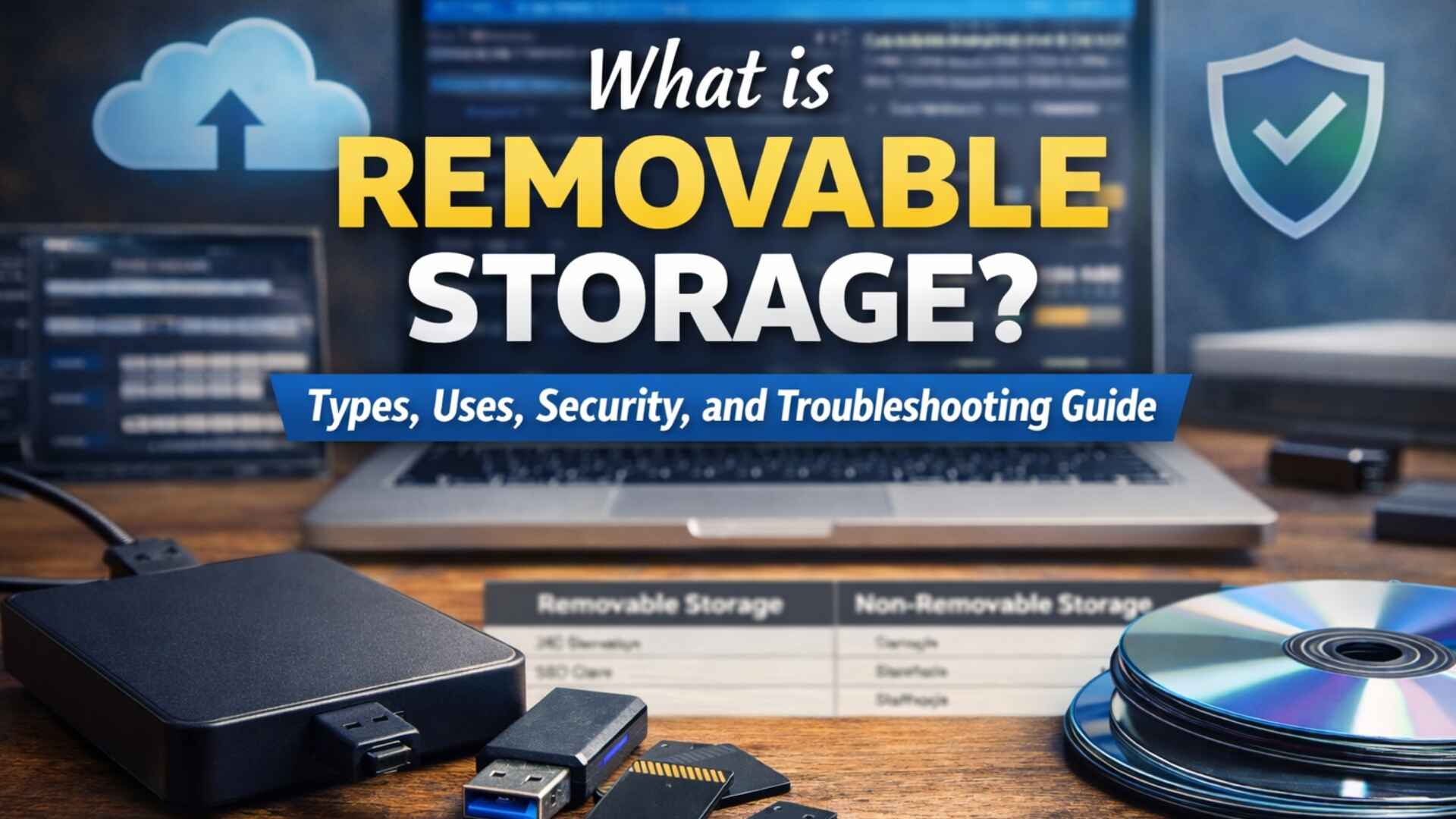
Removable storage is any storage device that can be easily connected to or removed from a computer or other electronic device. These devices allow you to store, transport, and transfer data quickly without relying on an internet connection. Common examples include USB flash drives, external hard drives (HDDs and SSDs), SD cards, CDs/DVDs, and even floppy disks for older systems.
The main advantage of removable storage is portability. You can move large amounts of data between devices or locations effortlessly. Most removable devices are plug-and-play, meaning they can be used without installing extra software. They also provide flexible ways to back up files, share documents, or run portable applications.
In contrast, non-removable storage—such as internal HDDs, SSDs, or system drives—is built into the computer. These devices generally offer higher storage capacity and faster read/write speeds but cannot be easily moved between systems.
| Storage Type | Portability | Common Use Case |
|---|---|---|
| External HDD/SSD | High | Backup, data transfer |
| Internal HDD/SSD | Low | Primary storage in PCs |
Understanding the difference between removable and non-removable storage helps users choose the right device for data transfer, backup, or storage management. Whether you need a small USB drive for documents or a large external drive for full system backups, removable storage provides a practical and cost-effective solution.
Types of Removable Storage Devices
Removable storage comes in various types, each serving specific storage and transfer needs. Understanding these options helps users select the right device for personal or professional use.
USB Flash Drives
Compact and highly portable, USB flash drives (often called thumb drives) are ideal for quick data transfers. Being plug-and-play, they require no additional software for use. USB drives are perfect for storing documents, photos, and small applications. Modern drives support USB 3.0 or 3.2, offering high-speed transfers.
External Hard Drives (HDDs and SSDs)
External HDDs and SSDs offer large storage capacities suitable for bulky files, system backups, or multimedia libraries. SSDs provide faster read/write speeds and greater durability than traditional HDDs. While slightly bulkier than USB drives, external drives are reliable for long-term storage and moving substantial volumes of data.
SD Cards and Memory Cards
Widely used in cameras, smartphones, and portable gadgets, SD and memory cards provide small yet powerful storage options. They serve both as expandable storage and convenient transfer devices for photos, videos, and other media. Modern SD cards support high-speed interfaces like UHS-II for faster transfers.
CDs, DVDs, and Blu-ray Discs
Optical storage media are less common today but remain valuable for archiving and sharing data. While they offer a relatively long lifespan, proper storage is necessary to avoid degradation. These discs are suitable for historical data preservation or for use in systems without USB or SD compatibility.
Floppy Disks
Mostly obsolete, floppy disks provide historical context for removable storage evolution. Though limited in capacity and speed, they demonstrate how portable storage has advanced over time.
These examples highlight the flexibility and variety of removable storage devices, helping users choose the right tool for data transfer, storage management, and backup purposes.
How Removable Storage Works
Removable storage devices are designed for easy connectivity and rapid data transfer. Devices like USB flash drives, external hard drives, and SD cards connect to computers using standard interfaces such as USB, Thunderbolt, or SD card slots. Once connected, the operating system recognizes them as plug-and-play devices, allowing users to move, copy, or access files without extra setup.
On Windows systems, the OS assigns a drive letter, while macOS mounts the volume on the desktop or Finder. Some devices may require initial formatting to match the OS file system, though most modern drives come pre-formatted.
Removable storage can also interact with BIOS or system firmware, especially when used for bootable drives or system recovery. BIOS settings allow you to prioritize boot devices, ensuring compatibility during troubleshooting or system updates.
By understanding how removable devices work, users can optimize transfer speeds, maintain proper storage organization, and ensure seamless compatibility across different computers and operating systems.
Benefits of Using Removable Storage
Removable storage devices offer portability, convenience, and efficiency:
- Portability and Convenience: Easily move files between home, office, or school without internet access.
- Fast Data Transfer: Modern USB and Thunderbolt interfaces allow rapid movement of large files.
- Cost-Effective Storage: A one-time purchase can provide multiple terabytes, serving as an alternative to recurring cloud subscriptions.
- Practical Uses: Backups, disaster recovery, and multi-device data transfer.
Overall, removable storage combines convenience, speed, and affordability for both personal and professional use.
Security Risks of Removable Media
Despite their advantages, removable devices carry risks:
- Malware and Viruses: USB drives and external HDDs can transfer malware if not scanned. Autorun features in older Windows versions may spread infections automatically.
- Data Loss or Theft: Small devices are easy to misplace or steal. Without encryption, sensitive data can be exposed.
- Unauthorized Access: Physical access without proper policies can allow reading or modification of confidential files.
Organizations should implement security protocols, including malware scanning, encryption, and controlled access, to minimize these threats.
Best Practices for Removable Storage Security
- Encrypt Sensitive Data: Protect information even if devices are lost or stolen.
- Implement Access Controls: Restrict use to authorized personnel using passwords or security keys.
- Regular Malware Scans: Scan devices before use and maintain updated antivirus solutions.
- Backup and Recovery: Keep critical data backed up to ensure business continuity.
By following these best practices, users can enjoy the benefits of removable storage while maintaining data security.
Comparison: Removable vs Non-Removable Storage
Understanding the differences aids in selecting the right storage type:
| Feature | Removable Storage | Non-Removable Storage |
|---|---|---|
| Portability | High | Low |
| Speed | Moderate | High (especially SSDs) |
| Security | Requires encryption | Physically secure |
| Use Case | Data transfer, backups | System storage, primary data |
Removable storage is ideal for portability and flexible data management, while non-removable storage offers higher speed, durability, and system integration.
Removable Storage Folder & OS Management
Managing folders on removable storage helps maintain organization and system performance.
- Windows: “Removable Storage” folders appear when devices are connected. Duplicate or phantom files may occur due to improper ejection or indexing issues.
- macOS: External drives appear on the desktop or Finder; unmount devices properly to avoid errors.
Tips for management:
- Always eject devices safely.
- Perform regular error scans.
- Keep folder names simple and avoid special characters.
- Backup important files before making changes.
Proper folder management reduces the risk of data loss, ensures device compatibility, and enhances performance.
Practical Examples & Use Cases of Removable Storage
- Data Transfer: Easily move documents, spreadsheets, and presentations between computers without cloud reliance.
- Software Installation: Portable applications can be installed on multiple systems quickly.
- Media Storage: Store photos, videos, and music on SD cards, external drives, or discs.
- Emergency Backups: Keep copies of important files for disaster recovery after hardware failures, malware attacks, or accidental deletion.
These examples demonstrate how removable storage makes data management faster, safer, and more versatile.
Conclusion
Removable storage provides portable, plug-and-play solutions for storing and transferring data. Devices such as USB drives, external hard drives, SD cards, CDs/DVDs, and even legacy floppy disks simplify file management across multiple systems.
While convenient and cost-effective, security risks such as malware, unauthorized access, and data loss must be addressed. Using encryption, access controls, malware scanning, and proper folder management ensures safety and compatibility.
Compared to internal SSDs or HDDs, removable storage offers flexibility and portability, while fixed storage provides higher speed and durability. Recognizing these variations helps users decide on the device that matches their specific demands.
Check device compatibility, organize folders carefully, and maintain backups to maximize the benefits of removable storage. By following these practices, you can enjoy portable, efficient, and practical data management in both personal and professional contexts.